OpenWebUI Custom Prompts: Create Reusable Templates for Common Tasks

OpenWebUI Custom Prompts: Create Reusable Templates for Common Tasks
You've just finished your tenth code review of the day, and you're typing the same instructions into your AI assistant again: "Review this code for security vulnerabilities, check for best practices, suggest performance improvements..." The frustration builds as you realize you're spending more time writing prompts than actually reviewing code. What if you could save your best prompts and reuse them instantly with a single click?
OpenWebUI's custom prompt feature transforms how you work with AI by letting you create reusable templates for your most common tasks. Whether you're reviewing code, writing documentation, analyzing data, or crafting marketing copy, custom prompts eliminate repetitive typing and ensure consistent, high-quality outputs every time.
What Are Custom Prompts in OpenWebUI?
Custom prompts in OpenWebUI are saved, reusable templates that you can instantly apply to your conversations with AI models. Think of them as shortcuts for complex instructions you use frequently.
Key benefits:
- Save time: No more retyping the same instructions
- Consistency: Get predictable, standardized outputs
- Sharing: Export prompts and share them with your team
- Flexibility: Works with any LLM model (GPT-4, Claude, Llama, etc.)
- Variables: Insert dynamic content into templates
Unlike generic AI interfaces, OpenWebUI gives you complete control over your prompt library, letting you build a personalized toolkit for your specific workflows.
Prerequisites
Before creating custom prompts, ensure you have:
- OpenWebUI installed (self-hosted or Elestio deployment)
- Active account with login credentials
- At least one LLM model configured (Ollama, OpenAI API, Claude API, etc.)
- Basic understanding of how to write effective AI prompts
- Admin or user permissions to create custom prompts
If you don't have OpenWebUI set up yet, you can deploy it in minutes on Elestio's fully-managed OpenWebUI service.
Step-by-Step: Creating Your First Custom Prompt
Let's create a practical custom prompt for code review—a task most developers do daily.
1. Access the Prompts Section
- Log into your OpenWebUI instance
- Click on your profile icon (top-right corner)
- Select "Workspace" from the dropdown menu
- Navigate to "Prompts" in the left sidebar
You'll see a list of any existing prompts (if any) and a "Create Prompt" button.
2. Create a New Prompt
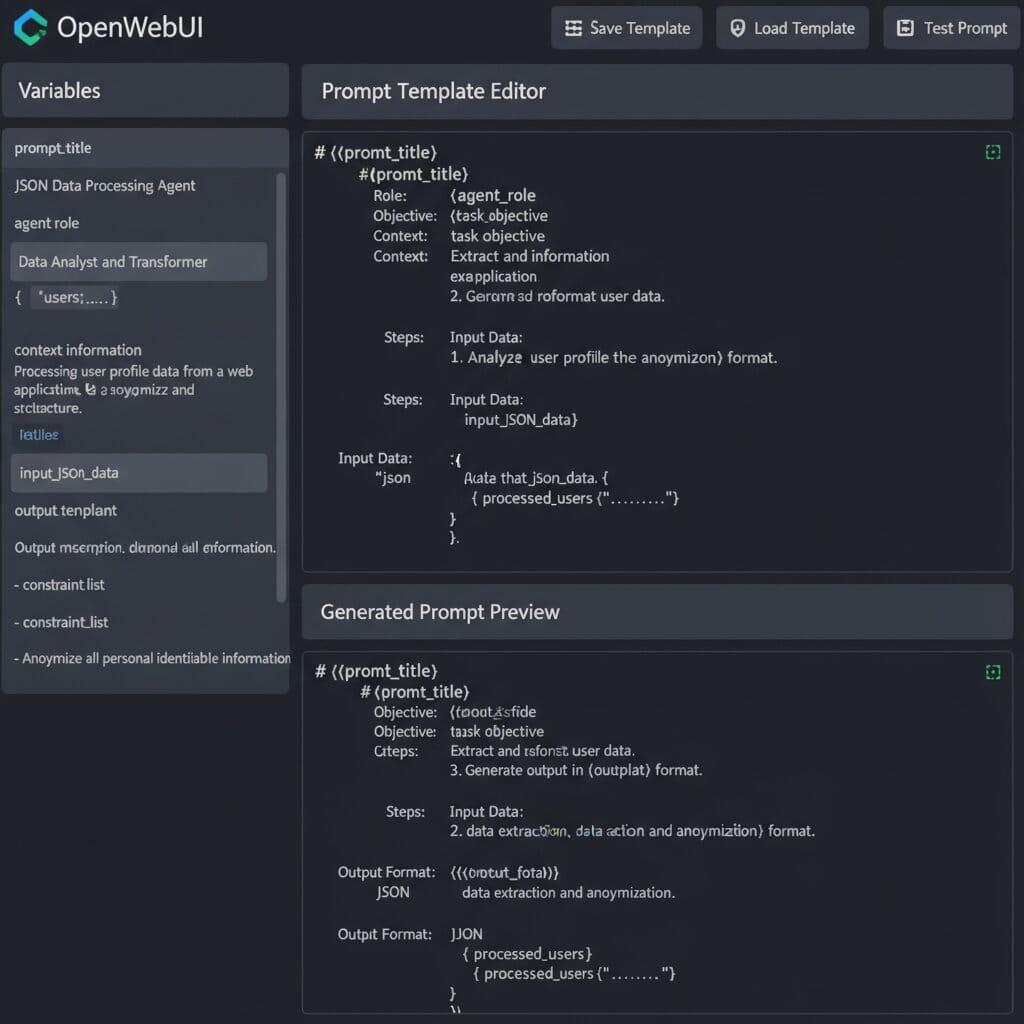
Click "Create Prompt" and you'll see the prompt creation interface with these fields:
| Field | Description | Required |
|---|---|---|
| Name | Display name for your prompt (e.g., "Code Review Assistant") | Yes |
| Command | Shortcut to activate prompt (e.g., /codereview) |
Yes |
| Description | What this prompt does (shown in prompt list) | Optional |
| Prompt Content | The actual instruction template with optional variables | Yes |
3. Build Your Code Review Template
Here's a production-ready code review prompt you can copy and use immediately:
Prompt Details:
- Name: Code Review Assistant
- Command:
/codereview - Description: Comprehensive code review focusing on security, performance, and best practices
Prompt Content:
You are an expert code reviewer with 10+ years of experience. Analyze the following code and provide a structured review covering:

## Security Analysis
- Identify potential security vulnerabilities (SQL injection, XSS, authentication issues, etc.)
- Check for sensitive data exposure
- Verify input validation and sanitization

## Code Quality
- Assess code readability and maintainability
- Check adherence to language-specific best practices
- Identify code smells and anti-patterns

## Performance
- Spot potential performance bottlenecks
- Suggest optimization opportunities
- Identify inefficient algorithms or data structures

## Recommendations
- Provide specific, actionable improvements
- Include code examples for suggested changes
- Prioritize issues by severity (Critical, High, Medium, Low)

Here's the code to review:

{{CODE}}

Please provide your analysis in the structured format above.
Important: The {{CODE}} placeholder is a variable that you'll replace with actual code when using this prompt.
4. Using Variables in Prompts
OpenWebUI supports dynamic variables in your prompts using double curly braces: {{VARIABLE_NAME}}
Common variable patterns:
{{INPUT}} - Generic input placeholder
{{CODE}} - For code snippets
{{TEXT}} - For text content
{{URL}} - For URLs or links
{{LANGUAGE}} - For programming languages
{{CONTEXT}} - For additional context
When you use a prompt with variables, OpenWebUI will prompt you to fill in each variable before sending to the AI.
5. Save and Test Your Prompt
- Click "Save" to store your custom prompt
- Start a new chat in OpenWebUI
- Type
/codereview(or your command) in the message box - OpenWebUI will show your prompt with a form to fill in variables
- Paste your code into the
{{CODE}}field - Click "Submit" or press Enter
The AI will now analyze your code using your custom template, providing consistent, structured reviews every time.
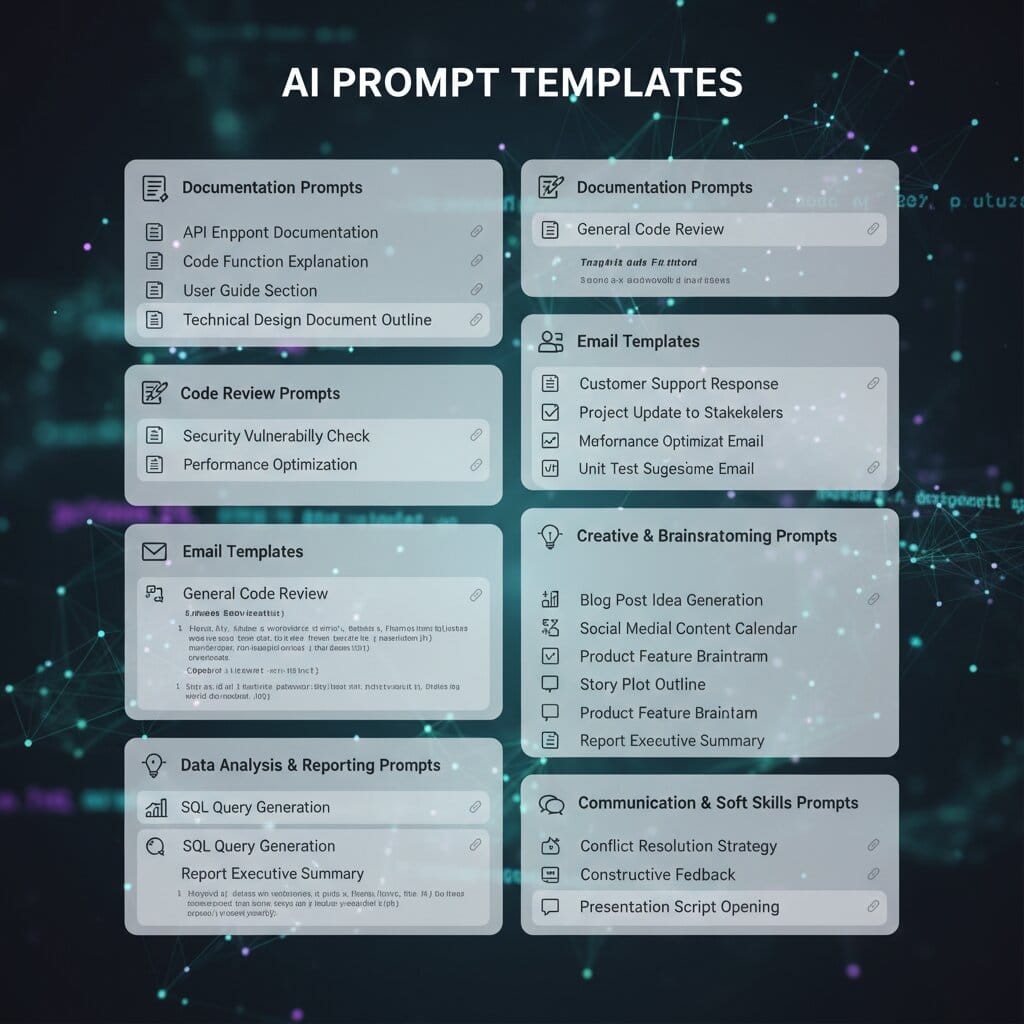
5 More Production-Ready Custom Prompts
Here are five additional prompts you can copy and use immediately in your OpenWebUI instance.
Prompt 2: Technical Documentation Writer
Command: /docwriter Use case: Generate professional documentation from code
You are a technical documentation specialist. Create comprehensive documentation for the following code:

## Overview
- Brief description of what the code does
- Primary use cases and benefits

## API Reference
For each function/method:
- Function signature
- Parameters (type, description, default values)
- Return values
- Exceptions/errors

## Usage Examples
Provide 2-3 practical examples showing:
- Basic usage
- Advanced usage with options
- Common edge cases

## Notes
- Important considerations
- Performance implications
- Dependencies or prerequisites

Code to document:

{{CODE}}

Output the documentation in Markdown format.
Prompt 3: Email Response Generator
Command: /emailreply Use case: Craft professional email responses
You are a professional communication specialist. Generate a well-crafted email response based on the following:

## Tone Requirements
- Tone: {{TONE}} (e.g., formal, friendly, apologetic, assertive)
- Relationship: {{RELATIONSHIP}} (e.g., client, colleague, manager, vendor)

## Context
Original email or situation:
{{CONTEXT}}

## Key Points to Address
{{KEY_POINTS}}

## Requirements
- Keep response concise (under 200 words unless specified)
- Use professional yet approachable language
- Include clear next steps or call-to-action
- Proofread for grammar and clarity

Generate the email response now.
Prompt 4: Data Analysis Assistant
Command: /analyzedata Use case: Analyze datasets and extract insights
You are a data analyst with expertise in statistical analysis and business intelligence. Analyze the following dataset:

## Dataset
{{DATASET}}

## Analysis Objectives
{{OBJECTIVES}}

## Required Analysis
1. **Descriptive Statistics**
   - Mean, median, mode
   - Standard deviation
   - Min/max values
   - Data distribution patterns

2. **Trends & Patterns**
   - Identify correlations
   - Spot anomalies or outliers
   - Detect trends over time (if applicable)

3. **Insights**
   - Key findings in plain language
   - Business implications
   - Actionable recommendations

4. **Visualizations**
   - Suggest appropriate chart types for the data
   - Describe what each visualization would show

Present findings in a clear, business-friendly format.
Prompt 5: Blog Post Outliner
Command: /blogoutline Use case: Generate SEO-optimized blog post structures
You are an SEO content strategist. Create a detailed blog post outline for the following topic:

## Topic
{{TOPIC}}

## Target Audience
{{AUDIENCE}}

## Keyword Focus
{{KEYWORDS}}

## Outline Structure

### 1. Title Options
- Provide 3 compelling, SEO-friendly title options
- Include primary keyword naturally
- Keep under 60 characters

### 2. Meta Description
- Write 155-character meta description
- Include primary keyword
- Clear value proposition

### 3. Article Structure
For each section, provide:
- **H2 Heading** (keyword-optimized)
- Bullet points covering key topics to discuss
- Suggested word count for section
- Internal/external linking opportunities

### 4. Content Recommendations
- Estimated total word count
- Suggested images/visuals
- Key takeaways
- Call-to-action ideas

Create the outline now.
Prompt 6: Meeting Notes Summarizer
Command: /meetingsummary Use case: Convert meeting transcripts into actionable summaries
You are an executive assistant skilled at summarizing meetings. Convert the following meeting notes/transcript into a structured summary:

## Meeting Notes/Transcript
{{NOTES}}

## Summary Format

### 📋 Meeting Overview
- Date: [Extract from notes if available]
- Attendees: [List participants]
- Duration: [If mentioned]

### 🎯 Key Decisions Made
- List all decisions with clear action status

### 📝 Action Items
Format as table:
| Task | Owner | Deadline | Priority |
|------|-------|----------|----------|
| [Task] | [Name] | [Date] | [High/Medium/Low] |

### 💡 Important Discussion Points
- Bullet list of key topics discussed
- Include relevant context

### ⏭️ Next Steps
- Clear next actions
- Follow-up meetings needed
- Outstanding questions

### 📎 Additional Notes
- Any other relevant information

Generate the summary now.
Advanced Features: Prompt Management
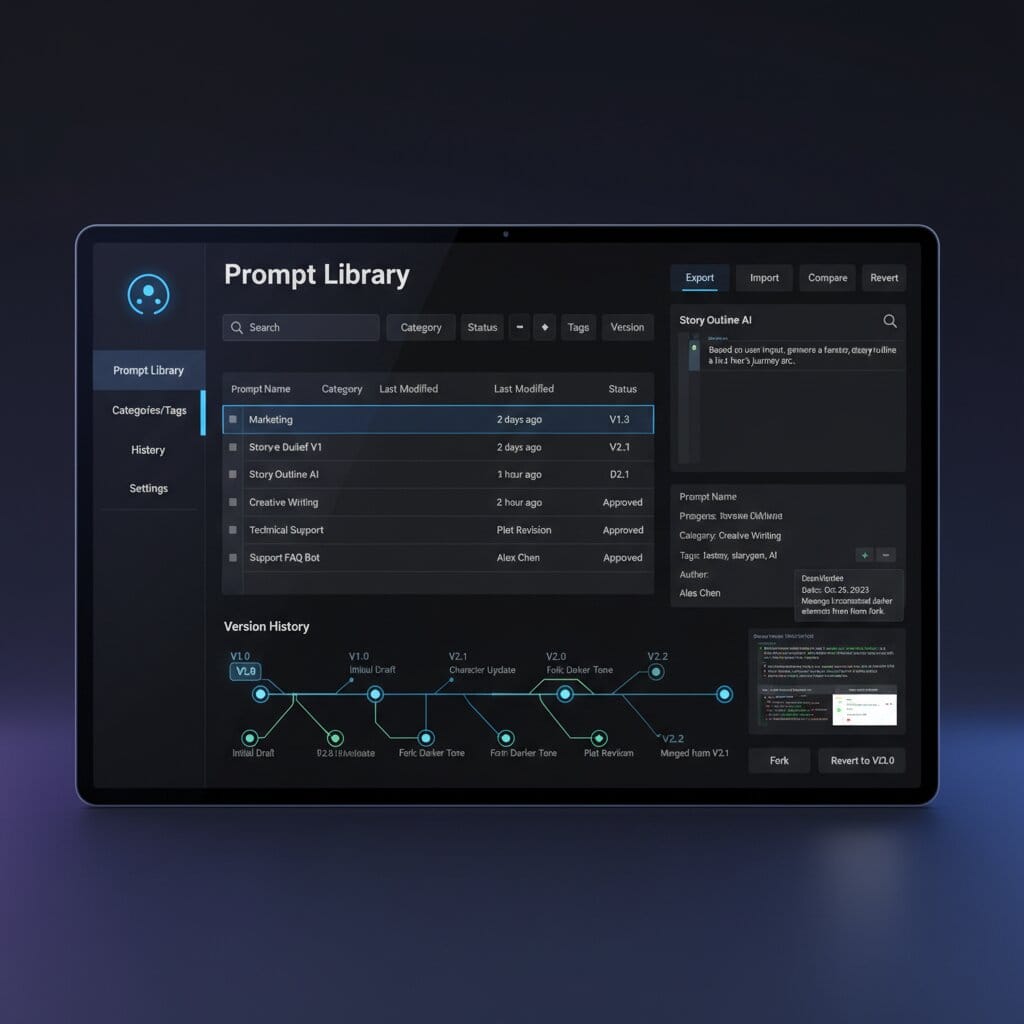
Organizing Your Prompt Library
As your prompt library grows, organization becomes critical:
- Use clear naming conventions
- Format:
[Category] - [Function] - Example:
Dev - Code Review,Writing - Blog Outline,Business - Email Response
- Format:
- Command naming best practices
- Keep commands short and memorable (
/codereviewnot/performcomprehensivecodereviewanalysis) - Use consistent prefixes for related prompts (
/dev-review,/dev-debug,/dev-optimize) - Avoid special characters or spaces
- Keep commands short and memorable (
- Add detailed descriptions
- Explain when to use this prompt
- Mention any prerequisites or expected input format
- Note which variables need to be filled
Exporting and Importing Prompts
OpenWebUI allows you to export your prompts as JSON files for backup or sharing:
To Export:
- Go to Workspace → Prompts
- Click on a prompt you want to export
- Click "Export" button (icon usually in top-right of prompt detail view)
- Save the JSON file to your computer
To Import:
- Go to Workspace → Prompts
- Click "Import" button
- Select the JSON file containing the prompt
- The prompt will be added to your library
Sharing with your team:
- Export your best prompts and share JSON files via email or Slack
- Store prompts in a shared Git repository
- Create a team wiki documenting available prompts and their use cases
Editing and Versioning Prompts
To modify an existing prompt:
- Go to Workspace → Prompts
- Click on the prompt you want to edit
- Make your changes
- Click "Save"
Best practice: Before major changes, export the current version as a backup. You can name it prompt-name-v1.json, prompt-name-v2.json, etc.
Troubleshooting Common Issues
Issue 1: Prompt Not Appearing When I Type Command
Solution:
- Check that you've saved the prompt correctly
- Verify the command starts with
/(e.g.,/codereview, notcodereview) - Refresh your browser (Ctrl+F5 or Cmd+Shift+R)
- Try logging out and back into OpenWebUI
- Check if prompt is enabled (some installations have enable/disable toggles)
Issue 2: Variables Not Being Recognized
Problem: Writing {CODE} instead of {{CODE}}
Solution:
- Always use double curly braces:
{{VARIABLE}} - Variable names are case-sensitive:
{{CODE}}≠{{code}} - No spaces inside braces:
{{CODE}}not{{ CODE }}
Issue 3: Prompt Output Is Inconsistent
Solution:
- Make your instructions more specific and structured
- Add examples of expected output format in the prompt
- Use numbered lists or bullet points to guide the AI
- Specify desired length (e.g., "in under 300 words")
- Include output format requirements (e.g., "respond in markdown table format")
Issue 4: Prompt Too Long - Hitting Token Limits
Solution:
- Break complex prompts into multiple smaller prompts
- Use more concise language without losing clarity
- Remove redundant instructions
- Consider using system prompts (if your OpenWebUI version supports them)
- For very large templates, use external documents and reference them
Issue 5: Can't Find Imported Prompts
Solution:
- Check if import was successful (look for success message)
- Verify JSON file format is valid (use a JSON validator)
- Check if prompt was imported for your user or globally (permissions)
- Look in all prompt categories/filters
- Try importing again after refreshing the page
Production Tips for Power Users
1. Create Prompt Collections by Workflow
Organize prompts by daily workflows:
Developer Workflow:
/dev-review- Code review/dev-debug- Debug assistance/dev-test- Generate unit tests/dev-refactor- Refactoring suggestions
Content Creator Workflow:
/content-outline- Blog post structure/content-social- Social media posts/content-seo- SEO optimization/content-edit- Proofreading and editing
2. Use Prompt Chaining
Combine multiple prompts for complex workflows:
- Use
/blogoutlineto generate article structure - Copy outline into a new chat
- Use
/content-seoto optimize each section - Use
/content-editfor final proofreading
3. Combine with Model Selection
Different prompts work better with different models:
- Code tasks: Use coding-focused models (CodeLlama, GPT-4, Claude)
- Creative writing: Use general-purpose models (GPT-4, Claude, Llama)
- Data analysis: Use models with strong reasoning (GPT-4, Claude)
4. Version Control Your Prompts
Keep a Git repository of your prompt JSON files:
# Create prompts repository
mkdir openwebui-prompts
cd openwebui-prompts
git init

# Export and commit prompts
git add *.json
git commit -m "Add code review and documentation prompts"
git push origin main
5. Test Prompts with Different Models
Before standardizing on a prompt, test it with multiple LLM models:
- Same prompt can produce vastly different results across models
- Some models follow structured instructions better than others
- Adjust prompt complexity based on model capabilities
Deploying OpenWebUI on Elestio
If you don't have OpenWebUI set up yet, Elestio offers fully-managed OpenWebUI hosting with:
- One-click deployment - Live in under 5 minutes
- Automatic updates - Always running the latest version
- Built-in SSL - HTTPS configured automatically
- Custom domains - Use your own domain with automated SSL
- Backup & recovery - Automatic daily backups
- Multiple LLM support - Connect to Ollama, OpenAI, Anthropic, and more
Choose from cloud providers like Hetzner, DigitalOcean, Linode, or bring your own server. Minimum requirements: 2 CPU / 4 GB RAM.
For custom domain setup, follow the official documentation.
Conclusion
Custom prompts in OpenWebUI transform repetitive AI interactions into instant, consistent workflows. By building a library of reusable templates, you'll save hours every week while improving the quality and consistency of your AI outputs.
Start with the six production-ready prompts in this guide, then experiment with creating your own based on tasks you perform daily. Export and share your best prompts with your team to standardize AI usage across your organization.
The key is iteration—your first prompts won't be perfect, but each refinement brings you closer to a personalized AI assistant that works exactly how you need it to.
Thanks for reading ❤️
See you in the next one 👋